 QiblaFind
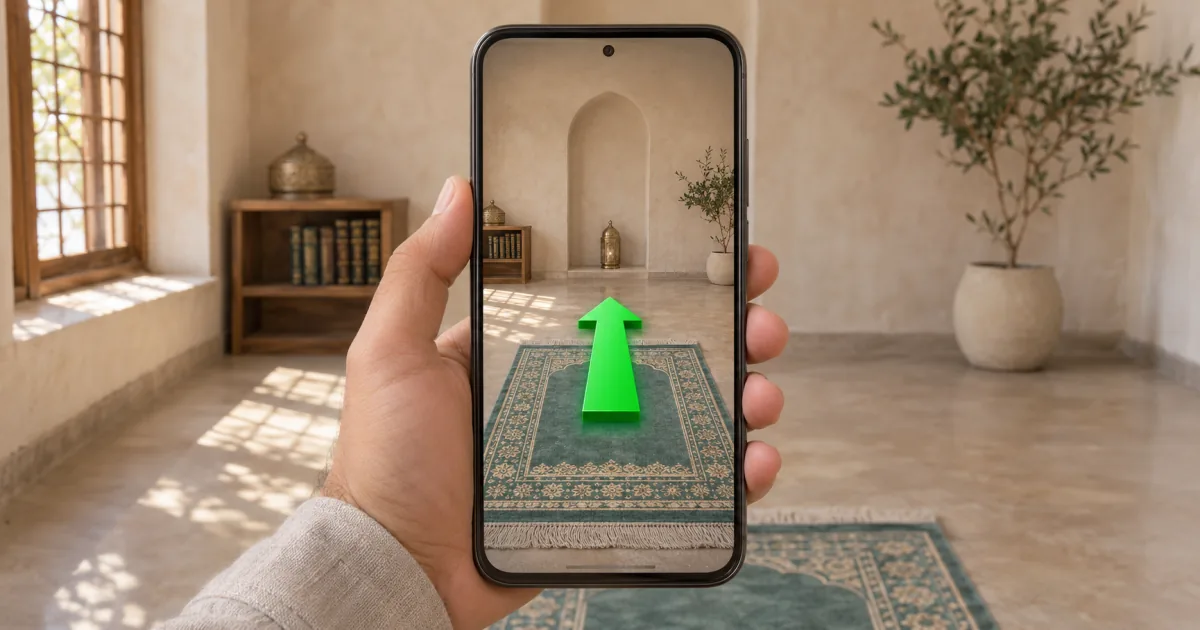
When you’re in an unfamiliar room, a bearing in degrees is only part of the answer. You still need a direction you can see from where you stand. The AR Qibla Locator uses your phone’s rear camera as a view of the room and draws an arrow to guide you toward the Qibla. When the arrow turns green, pick a visible point ahead so you can keep that direction after you stop the camera. Open the AR Qibla Locator
Start the camera and allow the readings
Open the tool in your browser on a compatible phone or tablet and tap Start camera. Allow camera, location and motion or orientation access when the browser asks. The rear camera shows your surroundings, your location sets the bearing from where you stand, and the motion readings let the arrow move as you turn the phone.
The camera opens in a view that fills the screen. While the tool is waiting for usable readings, the arrow stays visible in a neutral color. The camera feed stays on your device, and the tool uses video only. Tap Stop camera when you’re done. If you open the page on a computer, you can watch the animated demo before trying live guidance on a phone.
Follow the arrow until it turns green
You can start with the phone at any tilt. Move it in the direction the arrow indicates. The arrow changes angle and depth as you turn, tilt or roll the phone. If it points diagonally, follow that movement as well as the turn. When the rear camera points along the Qibla direction within the tool’s alignment range, the arrow turns green and the screen says You’re facing the Qibla.
The two numbers on the screen describe different angles. Qibla bearing is the direction toward the Kaaba measured clockwise from true north. Turn by is how far the camera’s pointing direction is from that bearing. It can change when you tilt the phone even if your feet stay in the same place.
Once the arrow settles, find a point in the middle of the camera view, such as the corner of a window or a mark on the wall. Face that point when you put the phone down.
Check against a landmark if the arrow jumps
The camera image gives you a view of the room. The arrow gets its direction from the phone’s sensors and your location. A magnet in a phone mount, steel in a nearby surface or an uncalibrated compass can shift the reading. Move away from the interference and try again. The difference between magnetic north and true north can also affect the guidance on some phones, so treat the green signal as an approximate alignment. Why phone compass readings can shift
If the arrow is still inconsistent, use the map and identify a street or building edge near your pin. You can check whether that reference agrees with the direction you saw in the camera view.
Use the map if your browser can’t start AR
If the camera fails to open, check the site’s camera permission and try Start camera again. If a camera view appears but the arrow stays neutral, check whether the browser shared your location and allowed motion readings. Some devices can show video while providing too little compass data for directional guidance.
On a computer, or whenever you prefer to keep those permissions off, use the Qibla Finder Map. Search for your city or place a pin where you’ll pray, then follow the line from that pin relative to a nearby landmark. This gives you a direction to use without a camera or motion sensor. Find the Qibla from a map pin